

Appearance
Creating a Payout
Payouts
A payout is a unique link that you can send to your counterparty to enable a payment to be made.
This begins by generating a secure link with a preset amount that you will need to copy and share with the counterparty via your communication channels. On receipt the counterparty clicks on the link, reviews the information and enters their bank account details to accept the payment.
Synthix Flow then verifies these details using Deutsche Bank’s account verification API. If the account matches the counterparty’s name, the payout is queued and the bank account is saved to their profile for future use.
Create a new payout
Click on the "New Payout" button to get started.
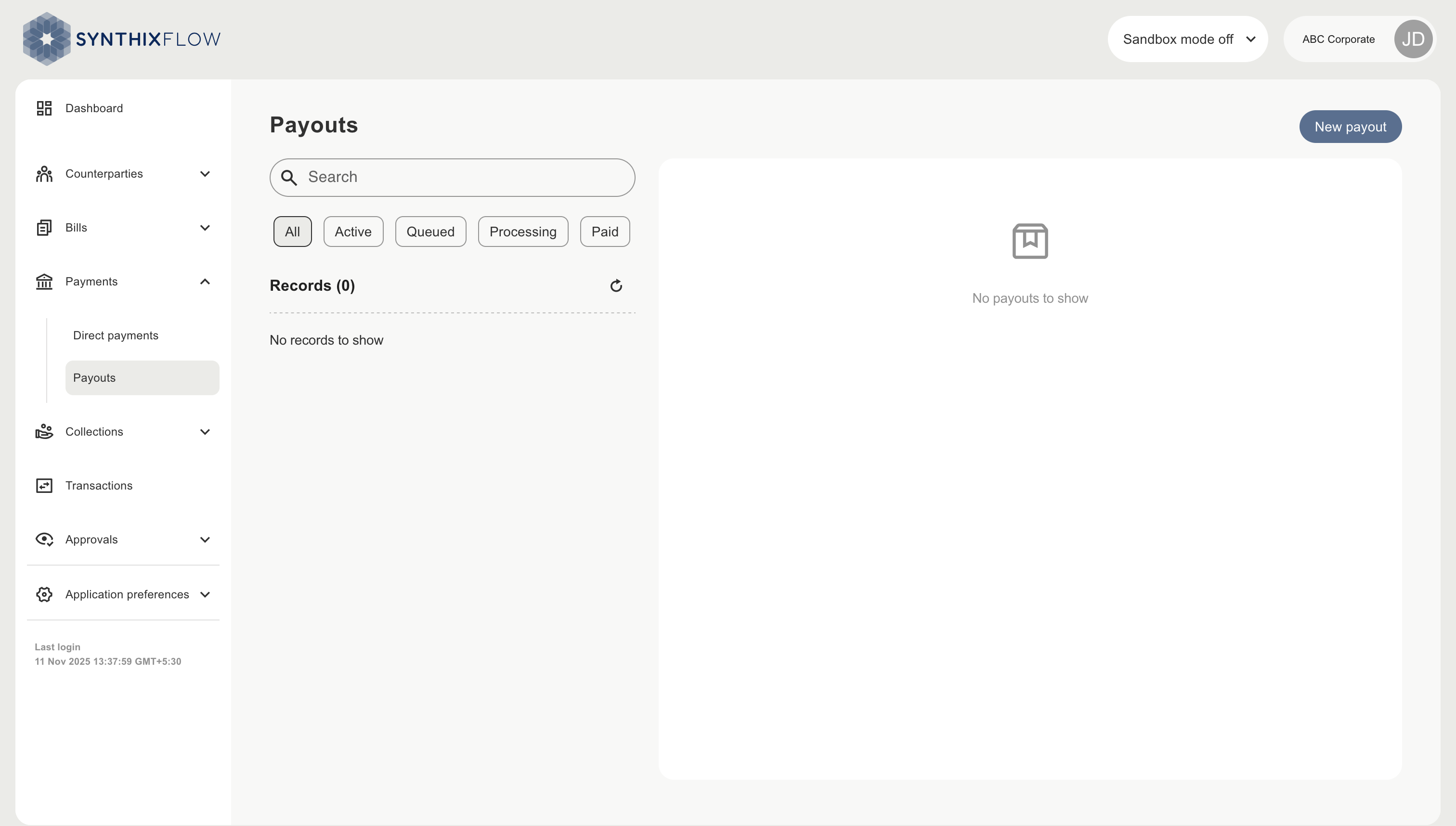
Choose the debit account
Choose the account you want the payout to be debited from
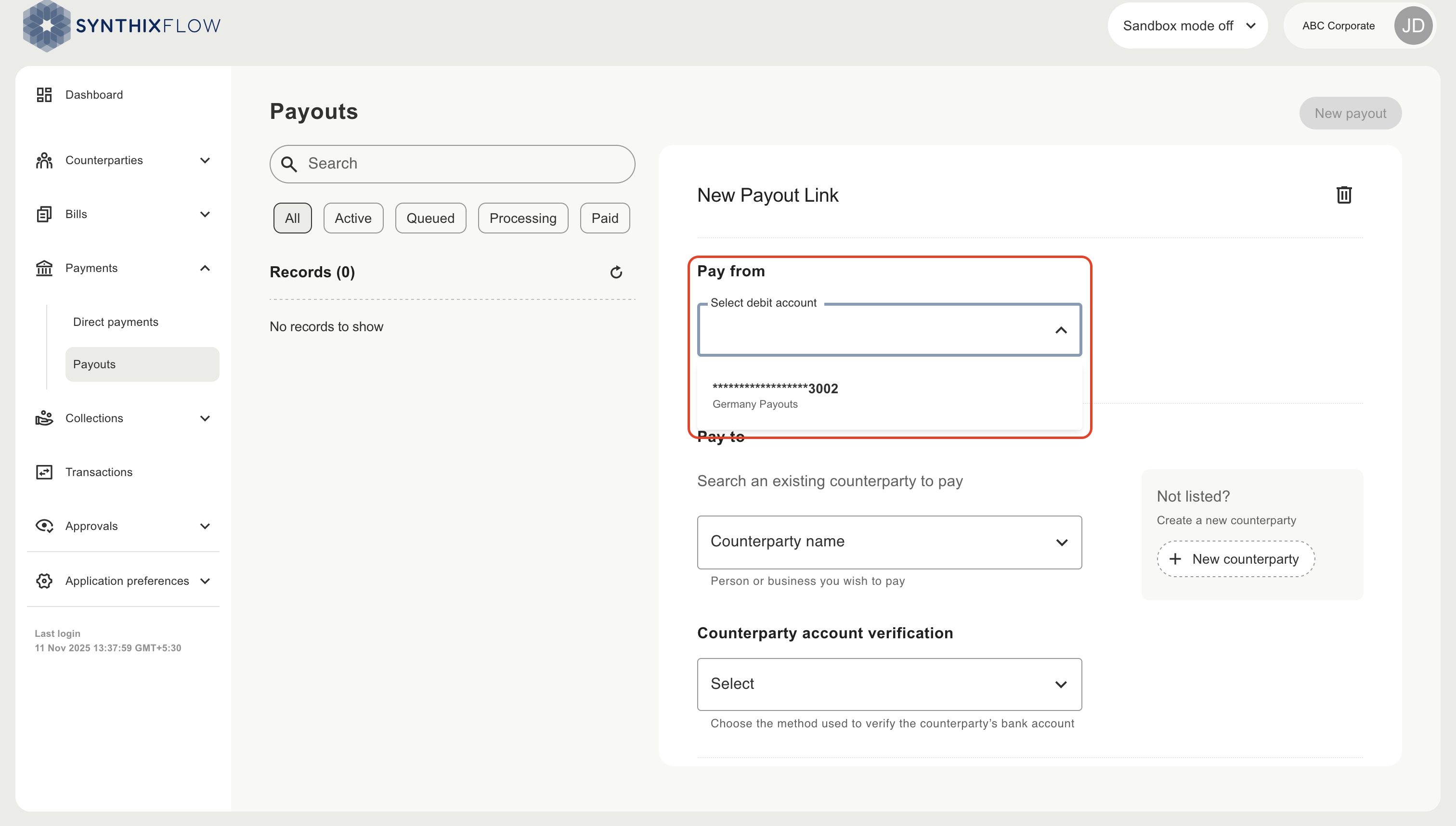
Choose the payment method
Choose the payment method from the available payment methods on the connected account
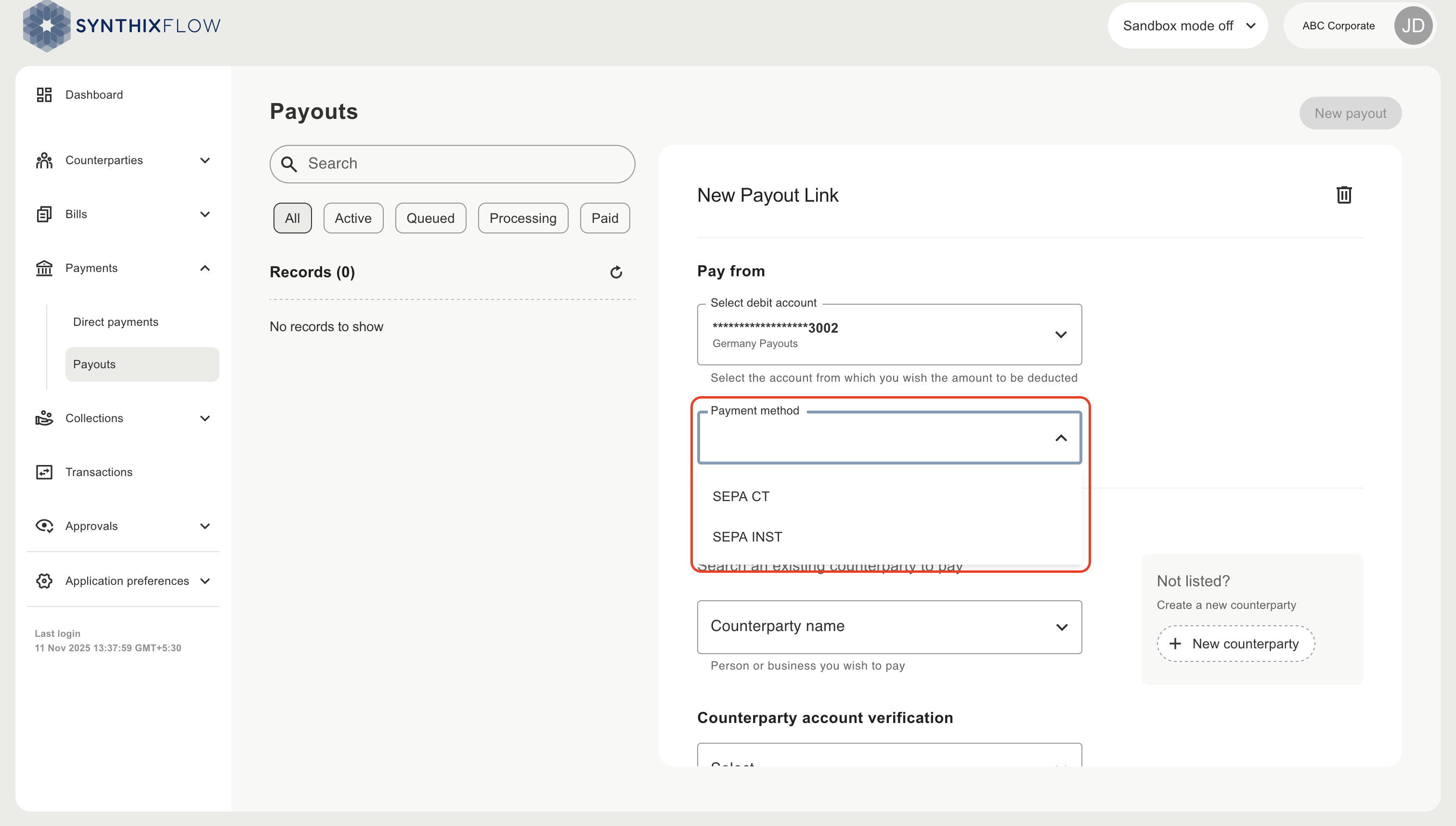
Choose the counterparty
Choose the counterparty to pay, or alternatively create a new counterparty inline by clicking “new counterparty”.
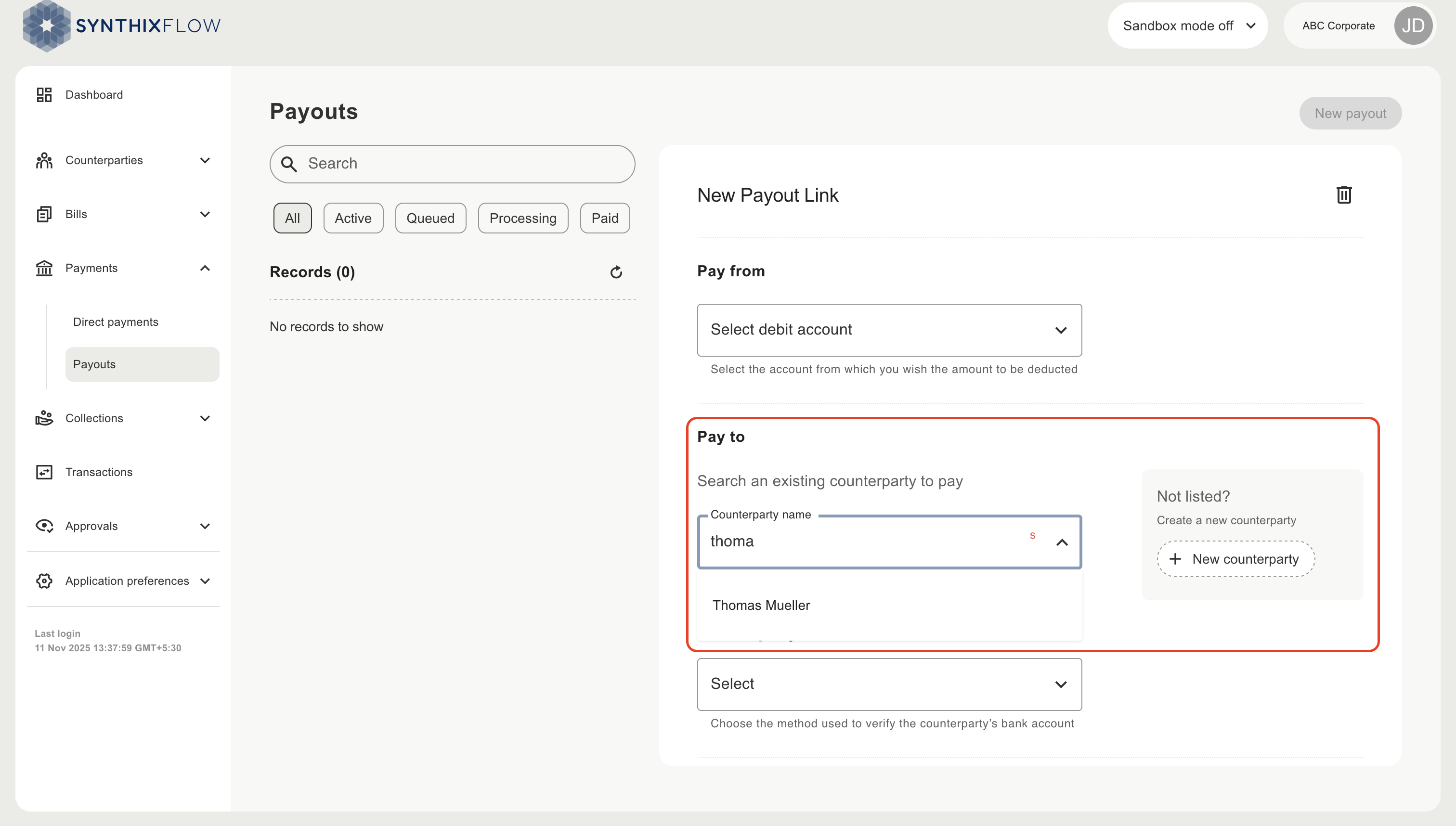
Setting the counterparty account verification
Set the verification method for the bank account details submitted by the counterparty. You can choose from one of three options:
- No verification - Counterparty's account will not be verified
- Verify and accept only verified - Allow counterparty to submit only successfully verified bank accounts
- Optional verification - Allow counterparty to submit bank accounts that are unverified, verified or have failed verification
WARNING
Accounts that are not verified have a significant risk of fraud, misdirected payments, and potential financial loss due to funds being sent to the wrong recipient.
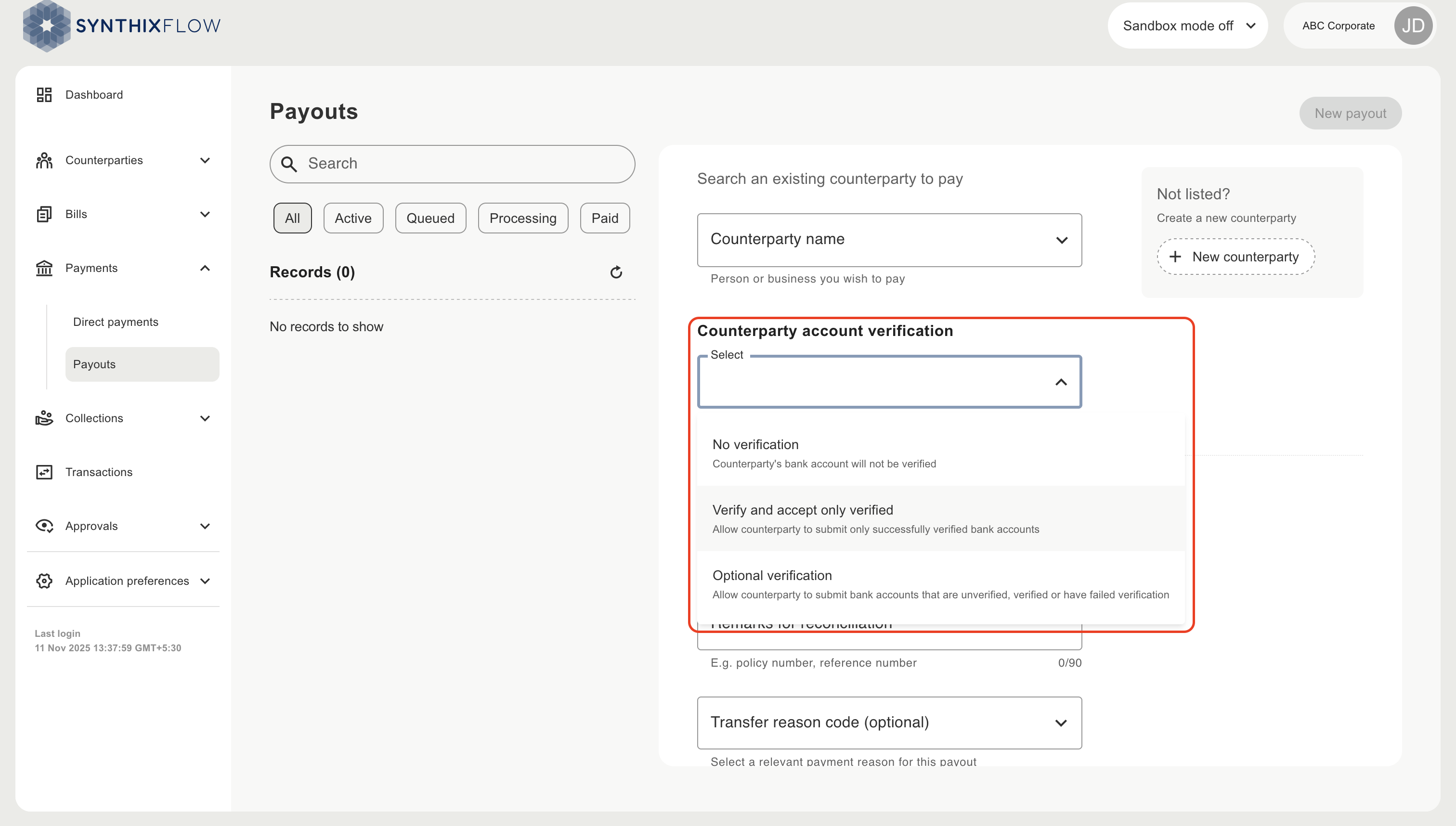
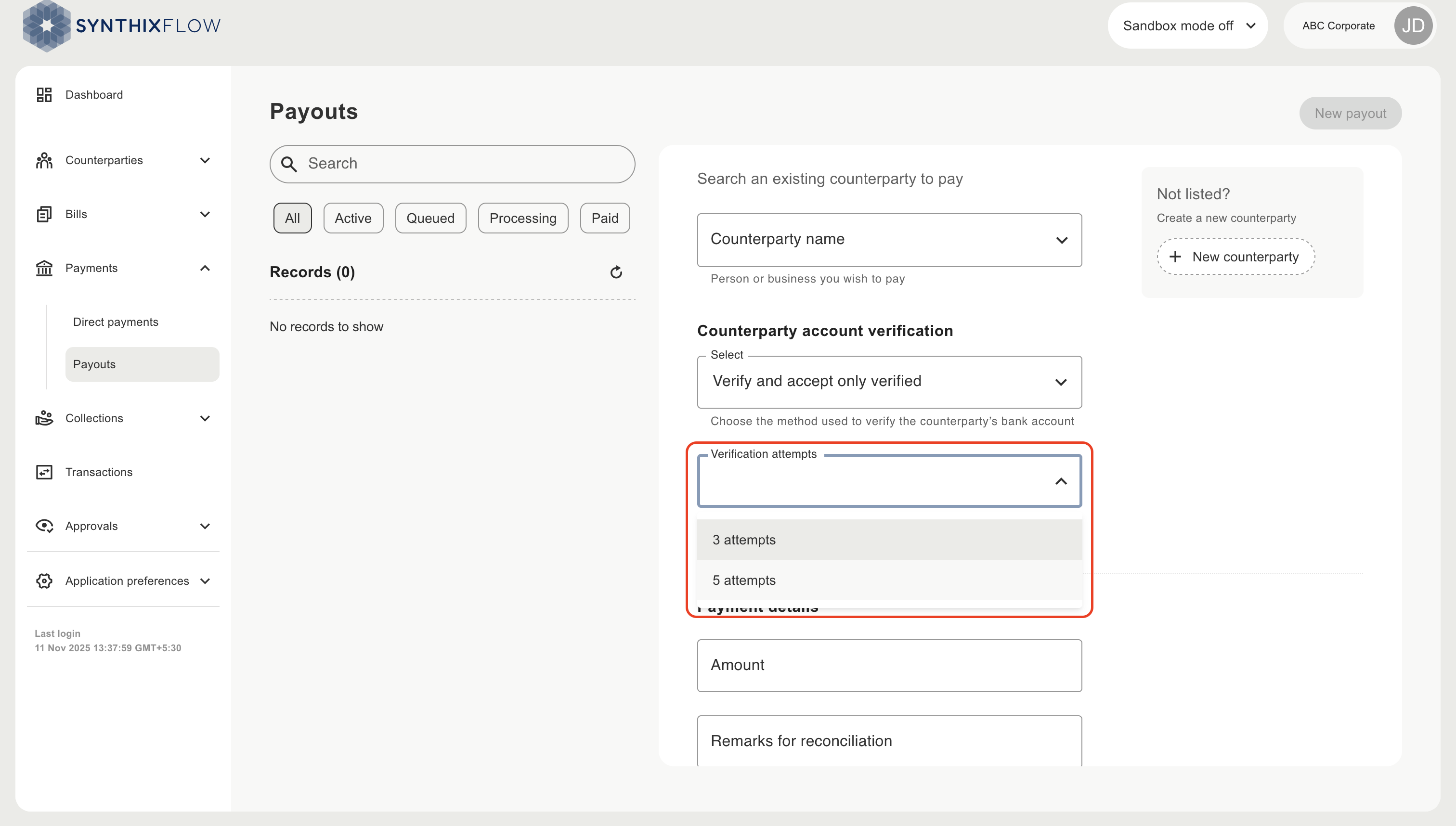
Set the number of verification attempts to be offered to the counterparty, on exhaustion of these attempts the link will become invalid.
Add Payment details
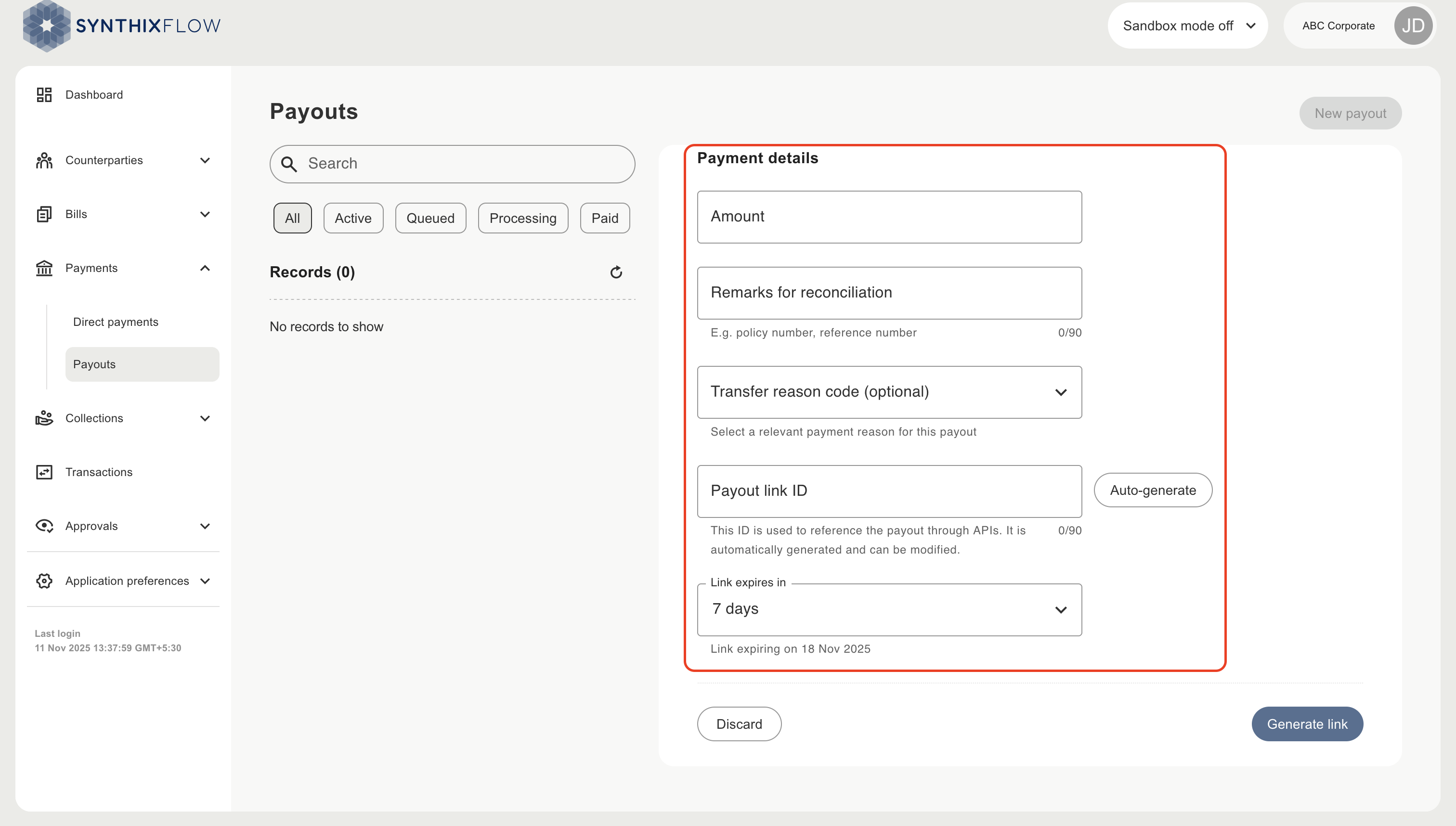
Add the details of the payment
| Field | Description |
|---|---|
| Amount | The amount of the payout |
| Remarks for reconciliation | Remarks that you can use to reconcile the payment in your ERP, CRM or other operational |
| Transfer reason code (optional) | Trasfer code to categorise the payment |
| Payout link ID | Unique payout link identifier, can be autogenerated by clicking the ‘auto generate’ button |
| Link expiry | The validity period for the link, after which the link will become invalid |
Generating the payout link
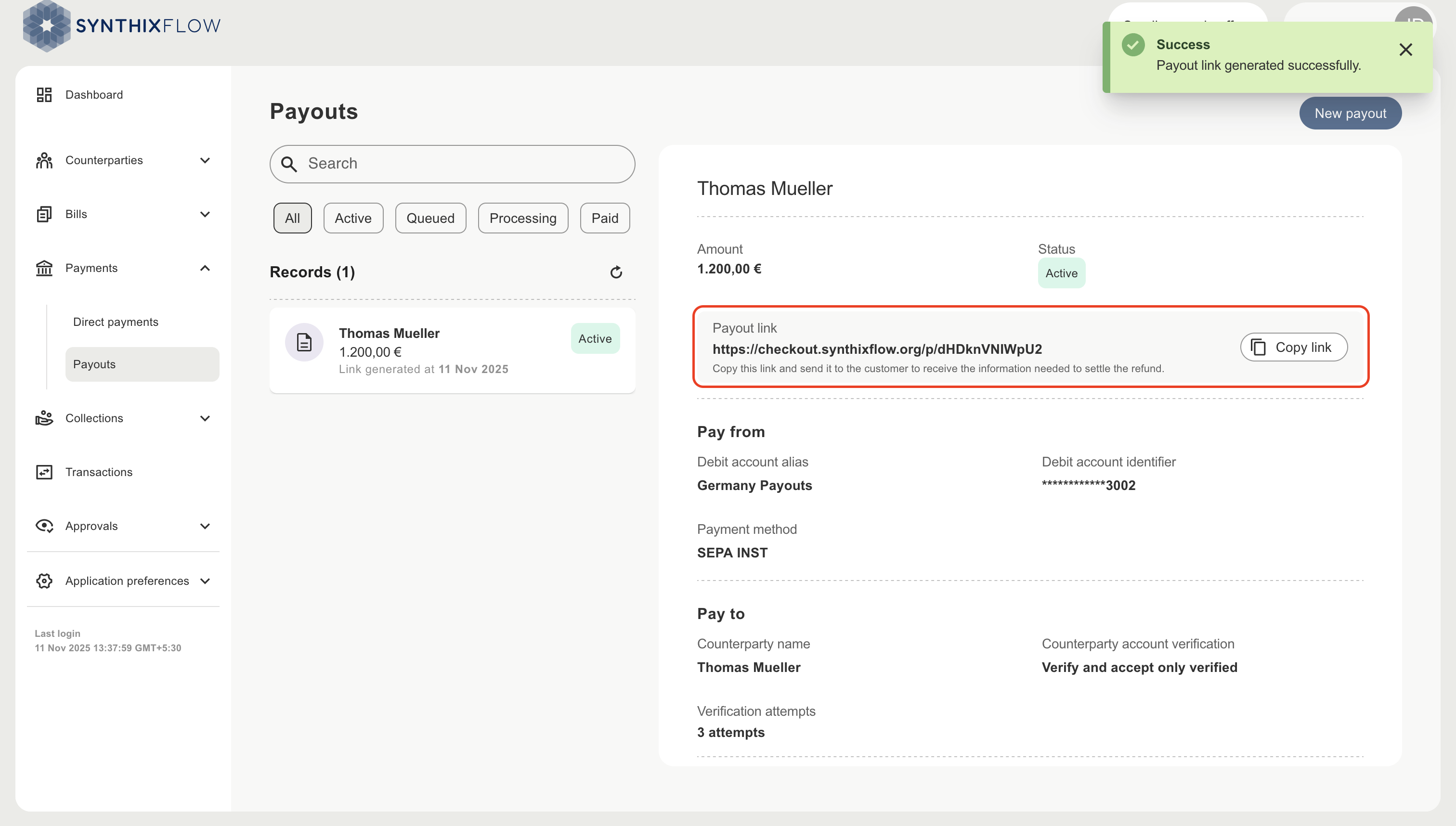
Click ‘Generate link’ to create a unique link for the payout. This link has to be copied by the client and sent to the counterparty email address.
Payout status and lifecycle
A Payout goes through the following states during it's lifecycle.
| Status | Description |
|---|---|
| awaiting link redemption / active | When a payout is created it is in the “awaiting link redemption” or "active" state until the expiry date of the payout, unless it's status is changed by a user or a counterparty |
| expired | If a payout link is not used by the counterparty before the expiry date, it’s status is changed to “expired” |
| pending approval | If a payout link is successfully used by a counterparty or if a direct payment is created to a counterparty it will enter the pending approval state. If approval workflows are enabled. Based on the result of the approval workflow it's state is further updated to
|
| queued | Approved payments enter the queued state. If approval workflows are disabled, Payments Payout links after successful submission by a counterparty or direct payments enter the queued state, skipping the pending approval state. |
| success | If a payment from the “queued” state is authorised and successfully executed by the bank, then its status is changed to “success” |
| failed | If a payment from the “queued” state is authorised and failed in execution from the bank, then its status is changed to “failed” |
| cancelled | In the following cases the payout status is changed from “active” to “cancelled” state
|