

Appearance
Reports
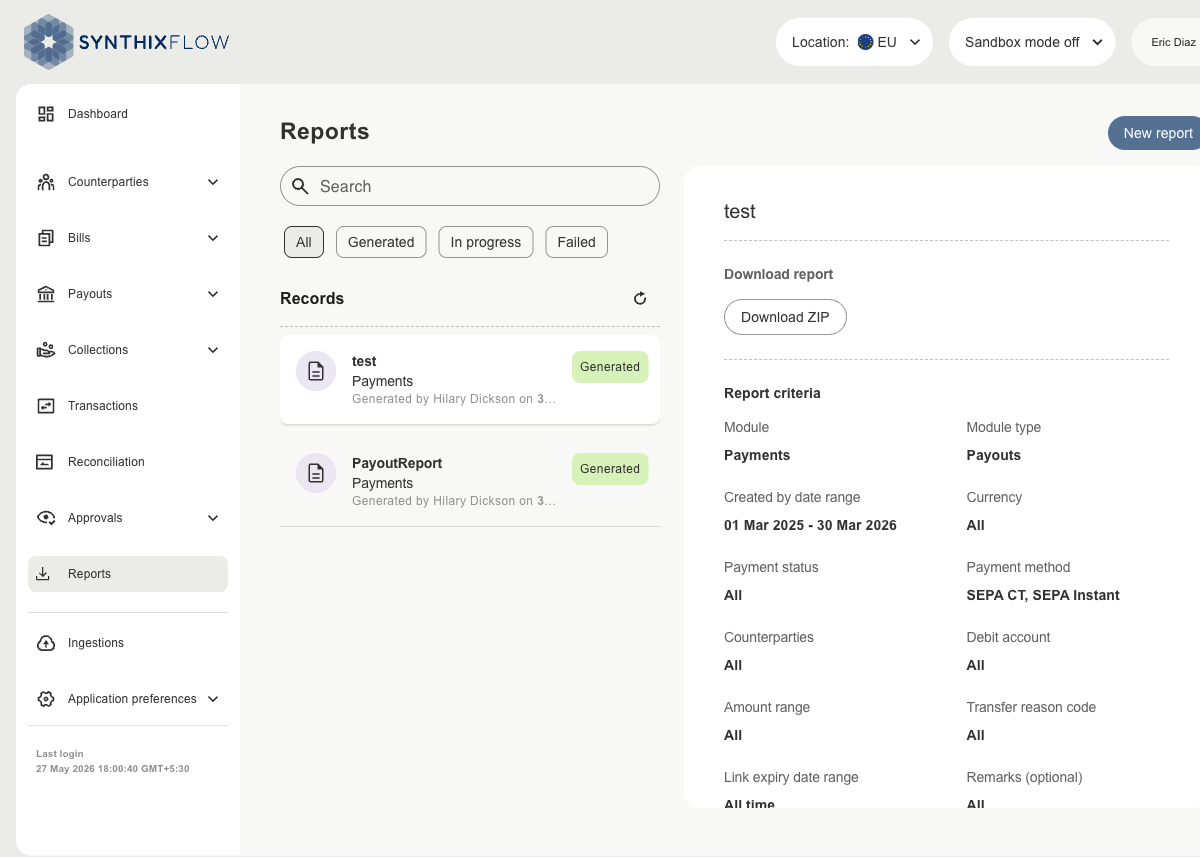
Reports lets you generate and download data exports for your Payments activity. Each report is built from filters you choose — module, date range, currency, status, and more — and is available to download as a ZIP file once generated.
Reports List
The Records panel on the left lists all reports requested by your organisation.
| Column | Description |
|---|---|
| Report name | The name given to the report when it was created |
| Module | The data type included in the report (e.g. Payments) |
| Generated by | Name of the user who requested the report |
| Status | Current state of the report |
Use the Search bar to find a report by name. Use the filter tabs — All, Generated, In progress, Failed — to narrow the list by status.
Report Statuses
| Status | Description |
|---|---|
| Draft | The report request has been created but not yet submitted |
| In progress | The report is being generated |
| Generated | The report is ready to download |
| Failed | The report could not be generated |
Report Details
Selecting a report from the list opens its details on the right, showing:
- Download report — a Download ZIP button to save the report file
- Report criteria — the filters applied when the report was created (module, date range, currency, status, etc.)
- Report details — who generated the report, its status, and when it was generated
To create a new report, see Create a Report.